Product Management
Access Product Management
To create your first product, click on Products in the left sidebar menu (under the Supplies section):
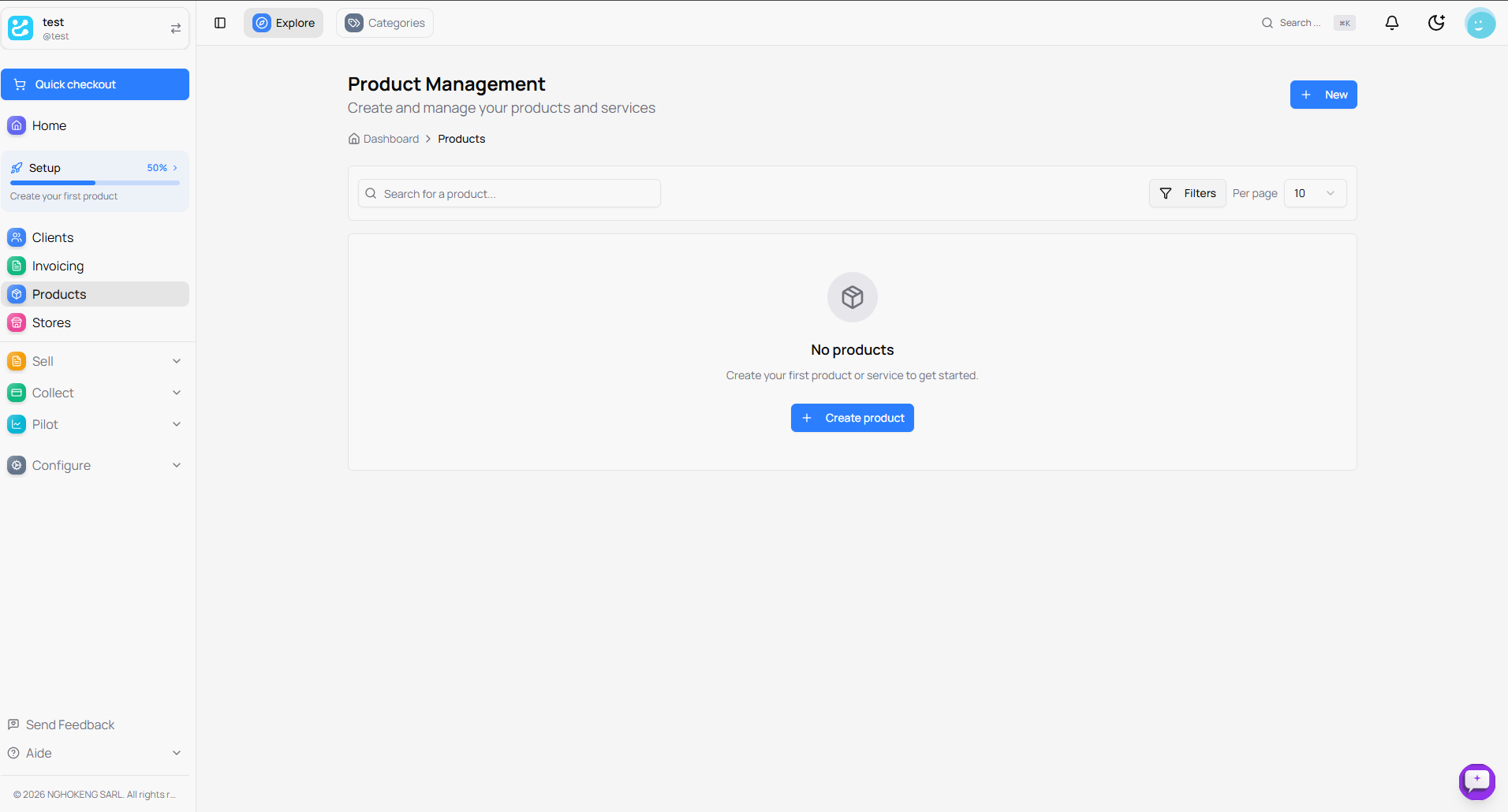
You arrive at the Product Management page which displays:
- A No products message (when you haven't created products yet)
- The text Create your first product or service to get started
- A blue Create a product button
You can also click the New button at the top right of the page.
Create Your First Product
Click the Create a product button to open the creation window.
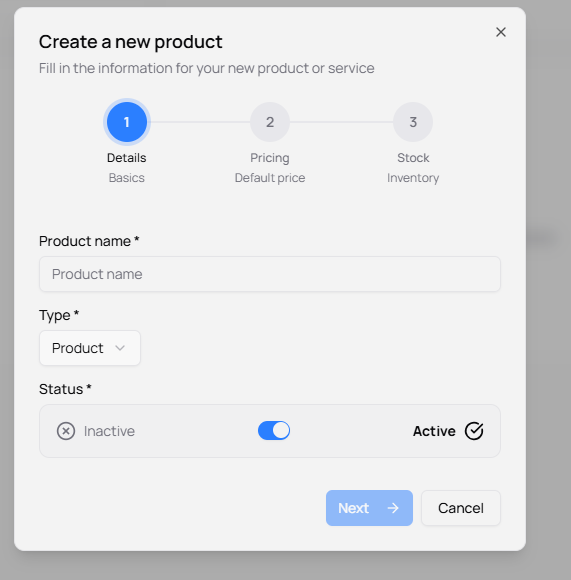
Product creation is done in 3 steps:
Step 1 - Details
Fill in the basic information for your product:
**Product Name ***
- Enter the name of your product or service
- This field is mandatory
**Type ***
- Select the type: Product or Service
- Product: for a physical item
- Service: for a service provision
**Status ***
- Activate or deactivate the product with the toggle button
- Inactive: the product is not available for sale
- Active: the product is available for sale
Click Next to move to the next step.
Step 2 - Pricing
Define the prices and description of your product:
**Default Amount (XAF) ***
- Indicate the unit sale price of your product in CFA francs
- This price will be used by default on your invoices and quotes
- This field is mandatory
Internal Code
- Enter an internal reference code for your product
- This field is optional
- Useful for organizing and easily finding your products
Description
- Write a detailed description of your product or service
- A rich text editor is available with the following options:
- Titles (H2, H3)
- Formatting (Bold, Italic)
- Bulleted and numbered lists
- Quotes
- Horizontal line
- Two tabs are available:
- Write: To draft your description
- Preview: To see the final result
Click Next to continue.
Step 3 - Stock
Manage your product's stock:
Create stock for this product?
- Activate the toggle to track stock quantities
- Deactivate it for products without stock limits or services
- Help text: "Track stock quantities for this product"
**Initial Stock ***
- Indicate the quantity available in stock at the time of creation
- Default: 0
- This field is mandatory if stock management is enabled
Warehouse
- Select the warehouse where this product is stored
- Default: "Default Warehouse"
- Help text: "Leave blank to use the default warehouse"
**Stock Unit ***
- Select the unit of measurement for stock
- Default: "Unit"
- You can choose other units as needed (pieces, kg, liters, etc.)
Click Create product to finalize creation.
Important
Fields marked with an asterisk (*) are mandatory. You must fill them out to create the product.
Managing Your Products
When you have created several products, the table displays all your information:
Search Bar
At the top of the table, use the Search a product... bar to quickly find a product by name.
Filter Products
To refine your search, click the Filters button:
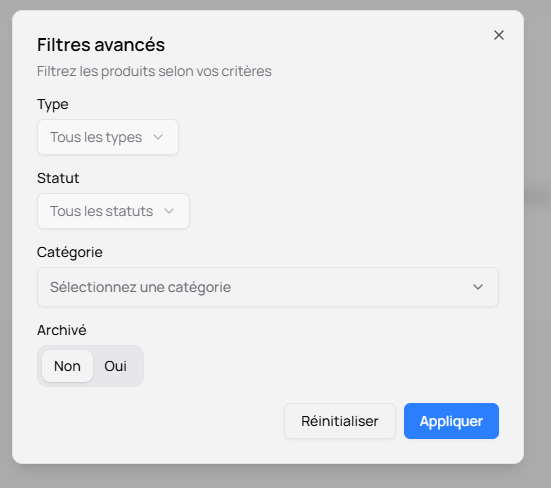
You can filter by:
- Status: Active or inactive products
- Type: Products or services
- Category: If you have created categories
Click Apply to see filtered results.
Number of Products per Page
Next to the Filters button, you can choose the number of products displayed per page:
- 10 products per page (default)
- 20 products per page
- 50 products per page
- 100 products per page
The Product Table
The table displays the following information for each product:
- Product Name: The name you entered
- Type: Product or Service
- Price: The selling price
- Stock: The available quantity
- Status: Active or Inactive
Actions (Three Dots)
To the right of each row, click the three dots to access available actions:
- View: Consult complete product details
- Edit: Edit product information
- Duplicate: Create a copy of the product
- Deactivate/Activate: Change product status
- Delete: Delete the product (warning, this action is irreversible)
Pagination
At the bottom of the table, pagination allows you to navigate between pages:
- Page numbers (1, 2, 3...)
- Previous and Next arrows to navigate
- Total number of products and current page
After Creation
Once your product is created, it appears in the product list. You can:
- Edit it at any time
- Delete it if necessary
- Consult it to see details
- Use it in your invoices and quotes
Your product is now ready to be sold!